
Are you ready to embark on the journey of setting up Rocky Linux, the robust, community-driven operating system? In this guide, we’ll walk you through a detailed, step-by-step process to install Rocky Linux on your system. So, let’s dive right in!
What is Rocky Linux?
Rocky Linux stands tall as a robust, open-source, enterprise-grade operating system, meticulously crafted to deliver a stable, secure, and performance-driven Linux experience. As a CentOS replacement, it inherits the spirit of the previous CentOS versions while promising continuous innovation and support.
Step 1: Downloading Rocky Linux
First things first, head to the Rocky Linux website and download the installation ISO file. Choose the appropriate version based on your system architecture and requirements.
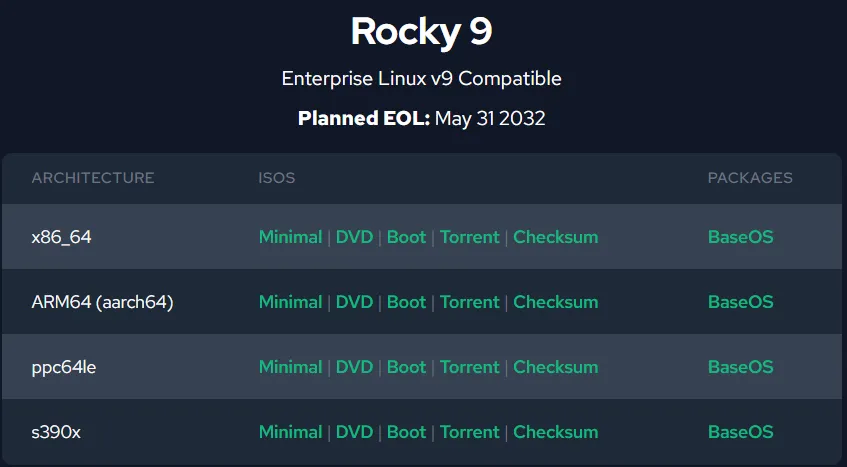
Step 2: Creating a Bootable Media
Next, create a bootable USB drive or DVD from the downloaded ISO file. Tools like Rufus or BalenaEtcher for Windows or dd command for Linux can assist in creating a bootable medium.
The dd command in Linux is a versatile utility used for converting and copying files or data with precise control over input and output parameters. Here’s an example of how you can use the dd command to create a bootable USB drive from an ISO image in a Linux environment:
Note: Be very careful when using dd as it can overwrite data on the target drive. Ensure you’ve correctly identified the target drive to avoid data loss.
Let’s assume you have downloaded the Rocky Linux ISO file, and you want to write it to a USB drive identified as /dev/sdX:
- Open a terminal window.
- Identify the path to your USB drive using the
lsblkorfdisk -lcommand. For instance, the USB drive could be/dev/sdX, where ‘X’ represents the drive letter. - Before writing the ISO to the USB drive, unmount the USB drive if it’s already mounted:
sudo umount /dev/sdX
4. Use the dd command to write the Rocky Linux ISO to the USB drive:
sudo dd if=/path/to/rocky-linux.iso of=/dev/sdX bs=4M status=progress
if=: Specifies the input file (path to the Rocky Linux ISO).of=: Specifies the output file (target USB drive).bs=4M: Sets the block size to 4 megabytes for faster copying.status=progress: Displays the progress of the data transfer.
Replace /path/to/rocky-linux.iso with the actual path to your downloaded Rocky Linux ISO file, and /dev/sdX with the correct identifier of your USB drive.
Important Note: Ensure that the device /dev/sdX is the correct USB drive you want to write to, as the dd command will overwrite data on the specified device without asking for confirmation.
Please be cautious while using dd to avoid accidental data loss by double-checking the target device and its identifier before executing the command.
Step 3: Booting into the Installer
Insert the bootable media into your system and restart it. Once you access the BIOS or boot menu, navigate to the “Boot” or “Boot Order” section using the arrow keys. Change the boot priority order to prioritize booting from the USB drive or DVD where the Rocky Linux installer is located. Move the USB drive or DVD drive to the top of the boot order list. Save the changes and exit the BIOS settings. The system will restart. Once the installer loads, you’re set to commence the installation process. The Rocky Linux installation screen should appear, displaying options to start the installation or enter the live environment.
Step 4: Initiating the Installation
Follow the on-screen prompts to select the installation language, time zone, keyboard layout, and other preferences. Click on “Install Rocky Linux” to begin the installation.
Step 5: Disk Partitioning
Choose between automatic partitioning or configure partitions manually based on your preferences. Ensure to allocate space for the root partition, home partition, and swap area as needed.
# Example: Creating partitions using fdisk
sudo fdisk /dev/sdX  # Replace 'sdX' with your disk identifier
Step 6: Setting up User and Password
Provide a strong username and password for the administrator account (root). This account grants elevated privileges on the system.
Step 7: Finalizing Installation
Once all configurations are set, proceed with the installation process. After completion, restart the system, removing the bootable media.
Congratulations! You’ve successfully installed Rocky Linux on your system. Explore its myriad of features and functionalities to suit your computing needs.
Your blog is a constant source of inspiration for me. Your passion for your subject matter shines through in every post, and it’s clear that you genuinely care about making a positive impact on your readers.